
Live Webinars
Host Live Webinars in JakoMeet's Control Room
The Control Room is where the webinar goes on air: check your camera and microphone, bring guest speakers in through a backstage link, arrange the stage and go live from the browser. Live captions run from the first word, and viewers can read them in 10 languages.
Guests & Backstage
Invite Guest Speakers Through a Backstage Link
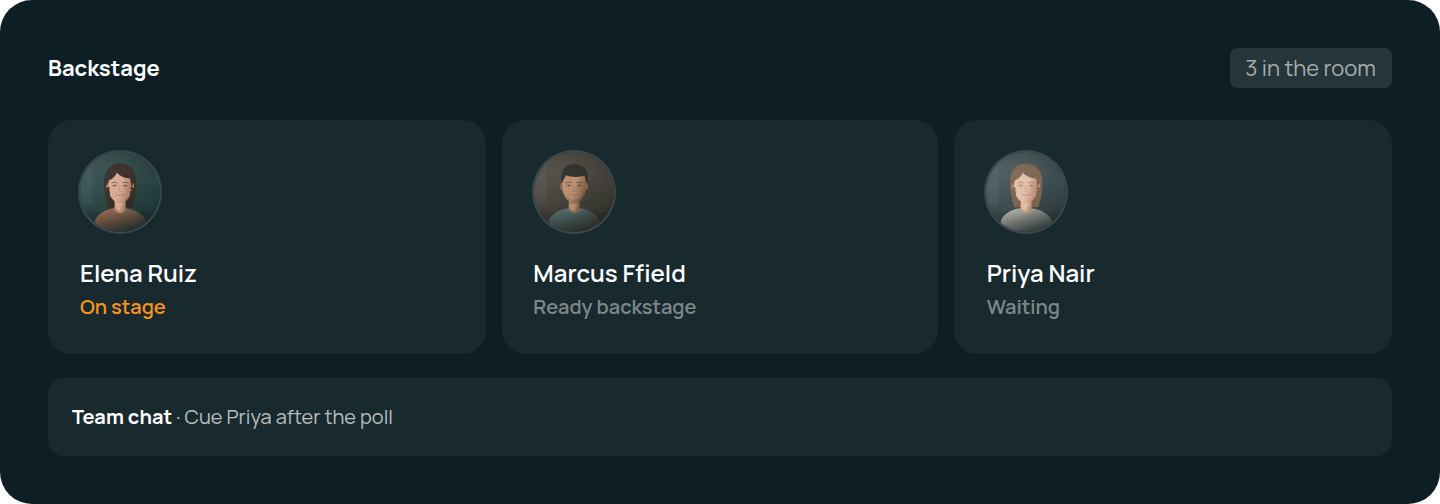
Each guest speaker gets a backstage link that you can renew or revoke at any time, and no JakoMeet account is needed. Backstage opens 30 minutes before the session: check the guest’s connection, chat with the team and move them on stage when it is their turn.
Stage and Audience
Control Stage Layouts, Sharing, and Audience Interaction
Put up to four people on stage in solo, side-by-side, grid, spotlight, presentation or panel layouts, and save up to 24 scenes to switch between during the session. Hosts and speakers share their screen, present PDF or PowerPoint slides and play MP4 clips; the stage adapts to phone and tablet screens. Chat and moderated Q&A run alongside the stream, and moderators can pause the chat, hide messages, and approve, pin or mark questions as answered.
After the session, Webinar Analytics has the numbers and, on Growth, AI Insights the summary.
The same Control Room runs customer training and internal sessions.
STAGE
Prepare the Scene, Then Put It on Air
Arrange the speakers, cue the slides and add on-screen graphics. Prepare the next scene while the current one is on air.
Arrange Up to Four People on Stage
Prepare the next scene, with up to four people on stage, while viewers watch the current one. Put it on air when it is ready.
Add Stage Graphics
Add a name strip, ticker, logo, cover, background and frame. The cover shows automatically when the stream starts, and every graphic can be prepared before it goes on air.
Present Your Own PDF or PowerPoint Slides
Hosts and speakers upload PDF or PowerPoint files of up to 50 MB and 200 pages, up to 10 presentations each, and move through the slides from the Control Room. MP4 clips of up to 64 MB and 10 minutes play the same way.
After the Live Session
Replay and Recording
Once the recording is processed, registrants watch the replay on the same event page, and on Growth new people can register to watch it on demand. Launch and Growth include the recording download and a transcript built from the live captions. The replay stays online for 30 days on Launch and for the last 12 months on Growth; an email with a download link arrives 7 days before a recording is deleted. Replay views appear in the webinar report.
FAQ
Frequently Asked Questions About Hosting Live Webinars
Yes. The webinar streams from JakoMeet; the Control Room in your browser handles device checks, speaker preparation and the live session, with captions on by default. It warns you 10 minutes before the planned end and allows 5 extra minutes.
Through a backstage link you send them. It can be renewed or revoked, and the guest needs no JakoMeet account.
Yes. Rehearse in the Control Room before you go live: check camera and microphone, prepare the stage and make sure every speaker is ready. Free includes a solo rehearsal.
Solo, side-by-side, grid, spotlight, presentation and panel, for up to four people on stage, with a preview before a scene goes on air. On-screen graphics include a name strip, ticker, logo, cover, background and frame.
Yes. Hosts and speakers share their screen or upload PDF and PowerPoint files, and move through the slides from the Control Room.
One per webinar on Launch, two on Growth. Each poll has one question with two to six options, and every viewer votes once.
Not yet. The webinar streams on the JakoMeet event page only.
Yes. Registrants watch it on the event page once the recording is processed, for 30 days on Launch and for the last 12 months on Growth. On Growth, new people can also register to watch on demand.
Rehearse in the Control Room on Free
Draft an event and rehearse alone in the Control Room on Free; go live with Launch or Growth.