
LIVE EXPERIENCE
How to Host a Webinar: Roles, Run of Show, and Live Checklist
Prepare and run a B2B webinar with clear team roles, a timed run of show, rehearsal checks, moderation guidance, and a practical plan for handling live problems.
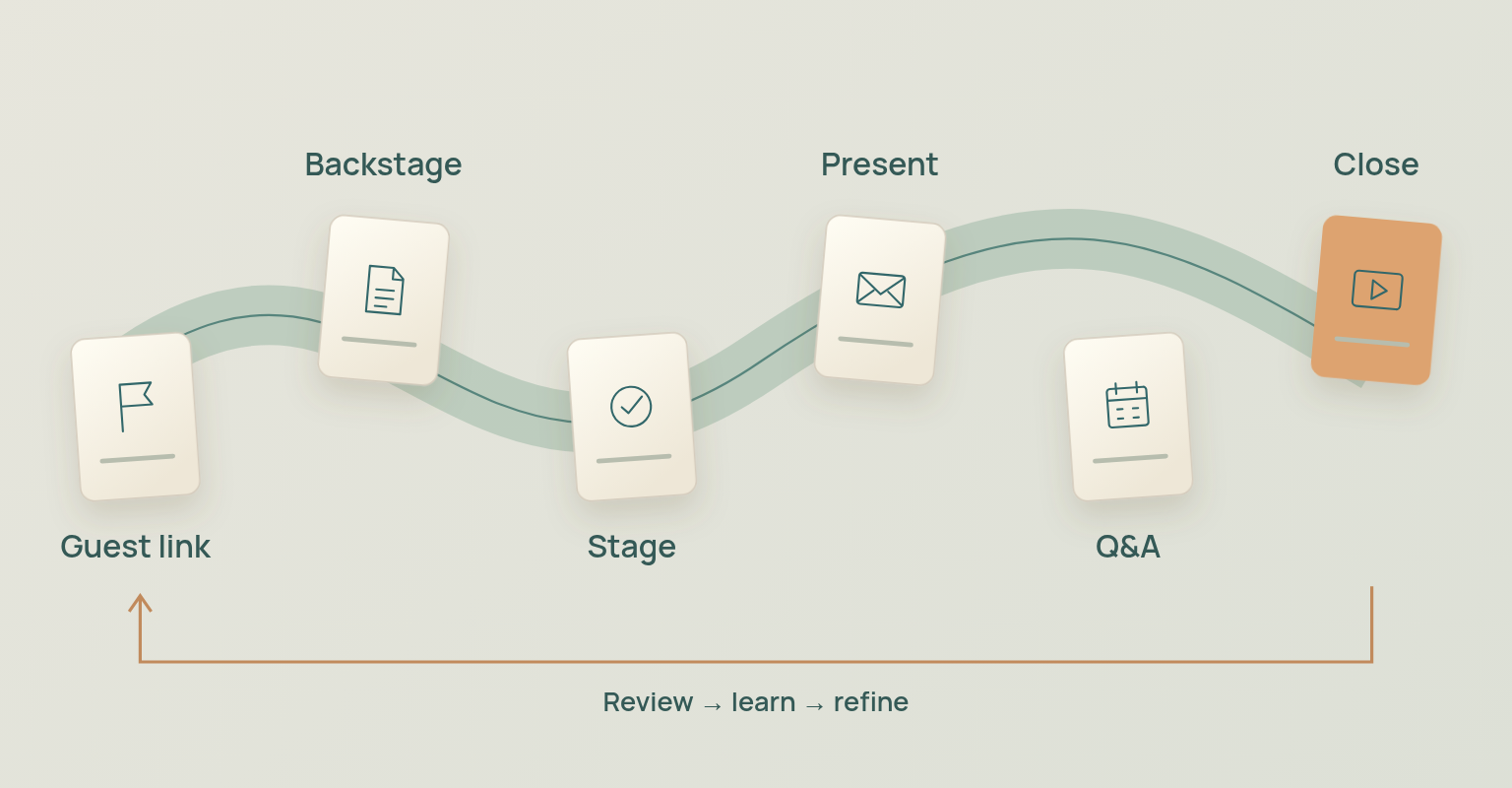
The host may be the most visible person in a webinar, but live delivery depends on a team coordinating timing, media, audience interaction, access and recovery. A reliable operating model has five parts: clear role ownership, a detailed run of show, a rehearsal that tests the complete workflow, a live control plan and a post-event handoff. The platform matters, but the team still decides who acts, who speaks, who monitors and what happens when the original plan fails.
This guide covers hosting from preparation through follow-up: a role matrix, a sample 45-minute run of show, opening and closing scripts, rehearsal steps, accessibility and security checks, moderation guidance and a failure-response plan.
Webinar Hosting Workflow at a Glance
| Phase | Primary Job | Lead Owner | Exit Condition |
|---|---|---|---|
| 7 to 14 Days Before | Confirm the live format, roles, content, access model, and audience interaction. | Campaign Owner | The run of show has owners, assets, and backups. |
| Rehearsal | Test speaker access, audio, video, media, transitions, captions, interaction, and recovery. | Producer | The team can complete every critical handoff. |
| 30 Minutes Before | Open backstage, verify people and assets, close unnecessary applications, and confirm support routes. | Producer | All required speakers are staged or the backup plan is active. |
| 10 Minutes Before | Confirm recording, captions, layouts, opening slide, audience settings, and private communication. | Host and Producer | The team agrees that the room is ready. |
| Live Session | Guide the audience, protect timing, operate media, moderate interaction, and recover from issues. | Host, Producer, Moderator | The close, CTA, and end-stream action are completed. |
| Immediately After | Verify the recording, attendance status, questions, poll data, resources, and follow-up owners. | Campaign Owner | The follow-up package has accurate inputs and owners. |
The timing above is a starting model. Add more preparation for external speakers, complex demonstrations, interpretation, sensitive content, executive participants or a team using the platform for the first time.
Assign Clear Webinar Roles
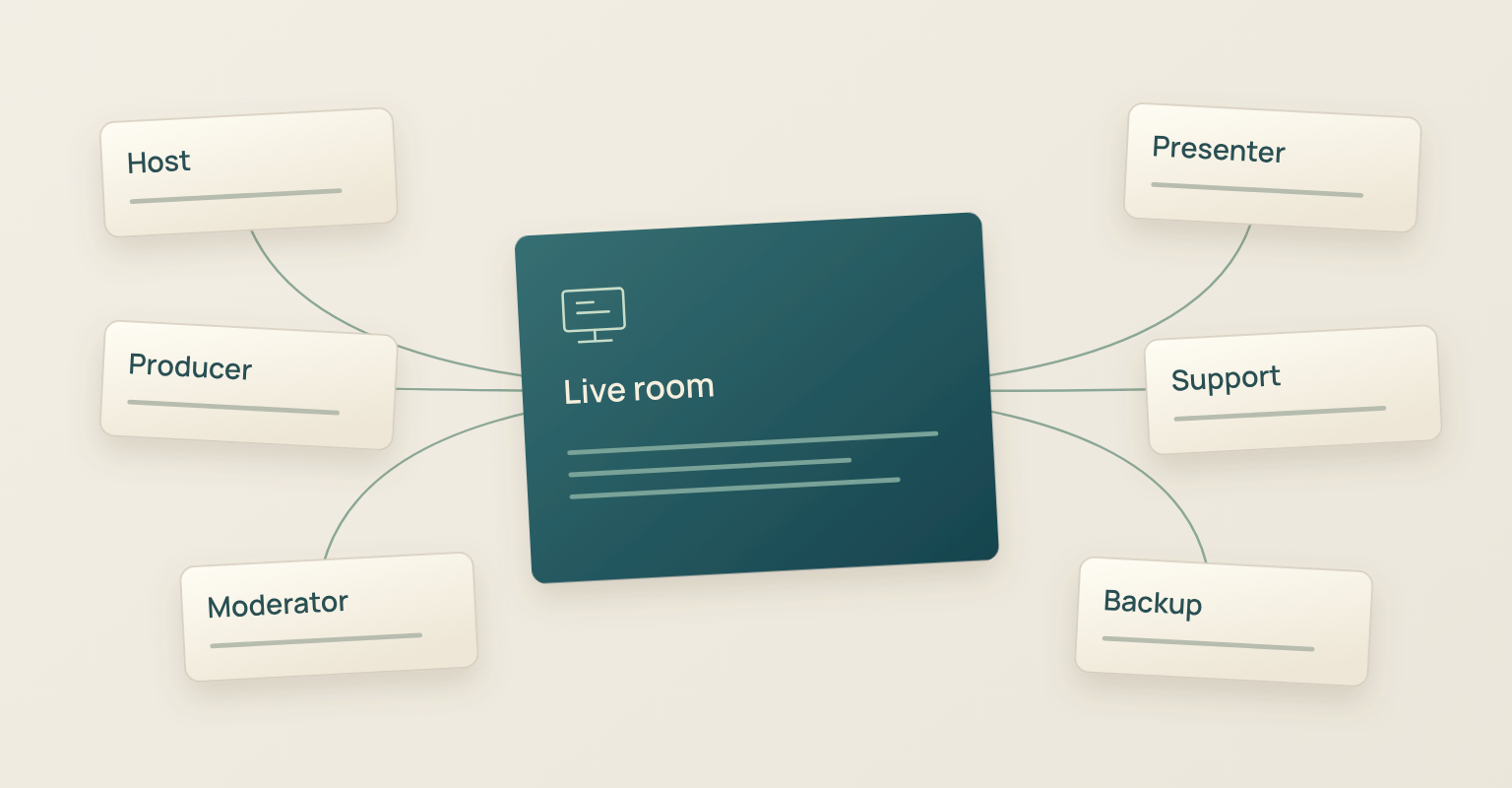
Live roles should be assigned by responsibility, even when one person covers several of them. CEDR's webinar protocol separates overall coordination, moderation, presentation, technical control, recording and follow-up. The job titles are secondary; what matters is that each live decision has one named owner.
| Role | Owns | Does Not Own | Backup |
|---|---|---|---|
| Campaign Owner | Outcome, audience, speakers, approvals, and post-event handoff. | Every live control or every audience question. | Named decision maker. |
| Host | Welcome, context, audience expectations, speaker introductions, and close. | Platform troubleshooting while speaking. | Moderator or second host. |
| Producer | Backstage, layouts, media, screen sharing, recording, go-live control, and technical recovery. | The speaker’s content or commercial claims. | Second producer or trained campaign owner. |
| Moderator | Time, transitions, Q&A selection, chat rules, and audience conduct. | Fixing devices or making unreviewed product commitments. | Host or subject expert. |
| Presenter | Accurate content, prepared media, demonstrations, and concise answers. | Running the room while presenting. | Co-presenter or prepared content bridge. |
| Support and Accessibility Owner | Access questions, caption or interpreter coordination, accommodations, and attendee support. | Moderating the full discussion unless assigned. | Producer or designated support contact. |
A two-person team can combine host and moderator while the producer runs the platform. A solo host can operate a simple session, but that choice should be explicit. One person holding several responsibilities is fine; nobody knowing which responsibility has priority when two things happen at once is the real risk.
Role Assignment Check
- Every critical live control has one named owner.
- The host can keep speaking while another person investigates a technical issue.
- The moderator knows which questions can be answered live and which require follow-up.
- A backup person can end the stream or restore the planned flow if the primary producer disconnects.
- Speakers know who will cue them and where private instructions will appear.
Build a Run of Show That Controls the Live Room
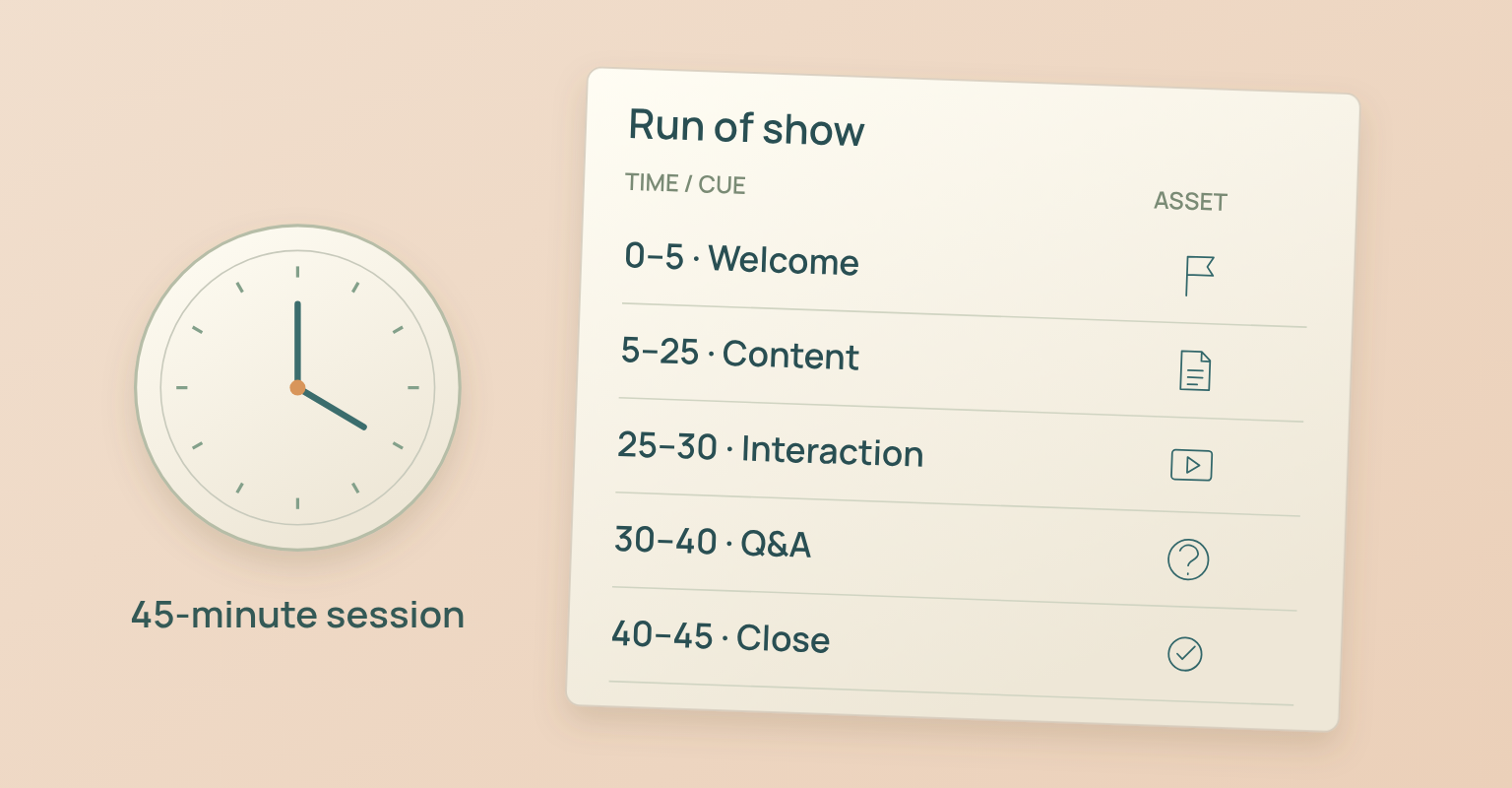
A run of show turns the agenda into an operating document. Barnard College's AV team describes it as a detailed timeline that also includes participants, contact information and other operational details. For a webinar it should tell the team what is happening, who owns it, which asset is required, what cue moves the event forward and what to do if the segment cannot run as planned.
What the Run of Show Should Contain
- Time and duration: The scheduled start, end and decision point for each segment.
- Audience view: What attendees should see or hear at that moment.
- Owner and speaker: The person speaking and the person controlling the room.
- Cue: The exact phrase or private signal that starts the next action.
- Asset: Slide deck, screen, poll, video, holding slide, CTA or backup material.
- Interaction: Whether chat, moderated Q&A or a poll is active.
- Contingency: The alternative action if a speaker, asset or feature is unavailable.
Sample 45-Minute Webinar Run of Show
| Time | Segment | Owner and Cue | Contingency |
|---|---|---|---|
| 00:00 to 00:02 | Welcome, recording notice, access and interaction rules. | Host. Cue: “Let us begin.” | Producer displays the opening slide while audio is restored. |
| 00:02 to 00:05 | Audience problem, outcome, speaker introductions, and agenda. | Host. Cue presenter by name. | Host summarizes the speaker’s context if the guest joins late. |
| 00:05 to 00:20 | Core framework or presentation. | Presenter. Producer advances or monitors media. | Move to a prepared static slide if screen sharing fails. |
| 00:20 to 00:30 | Demonstration, example, or case walkthrough. | Presenter. Cue: “I will show the workflow.” | Use screenshots or a recorded backup if the live demo fails. |
| 00:30 to 00:38 | Moderated Q&A and poll discussion. | Moderator. Cue questions by theme. | Use seeded questions while the audience queue develops. |
| 00:38 to 00:43 | Summary, key decisions, and relevant next action. | Host and presenter. | Shorten the summary, not the access or closing information. |
| 00:43 to 00:45 | Resources, replay expectation, thanks, and end-of-stream confirmation. | Host closes. Producer ends the stream. | Host states the follow-up path if the replay is not yet confirmed. |
Protect the closing segment in the schedule. When a presentation runs long, teams often remove the recap, CTA, replay expectation or support information. That saves minutes but weakens the part of the event that tells the audience what to do next.
Rehearse the Workflow, Not Only the Slides
A rehearsal should expose operational uncertainty before the audience arrives. The University of Minnesota host checklist separates initial scheduling, practice, final preparation, webinar start and after-webinar tasks. Use the same principle: test the whole system in phases rather than asking speakers to read slides while everyone else watches.
Test the Complete Speaker Journey
- Open the real speaker invitation or backstage link from the device the speaker will use.
- Confirm the displayed name, camera framing, microphone, output device and network connection.
- Test how the speaker enters backstage, moves to the live stage and leaves the stage.
- Confirm who can see private cues and who can see attendee messages.
- Practice the final handoff, including the exact cue that returns control to the host.
Test Every Live Asset
- Open the final slide deck from the live device and verify fonts, video, animation and embedded links.
- Practice screen sharing at the correct window or application level.
- Use a demonstration environment with stable sample data and a prepared reset state.
- Confirm the poll question, answer options, launch owner, close point and discussion plan.
- Prepare a static screenshot, short backup video or explanation that can replace a failed live demonstration.
Rehearse Transitions and Recovery
The highest-risk moments are usually the handoffs between people, windows and interaction modes. Practice the opening, first speaker cue, screen-share start and stop, return to stage, poll launch, Q&A start, closing CTA and end-of-stream confirmation. Then repeat at least one failure scenario so the backup is a practiced action rather than a note in a document.
The rehearsal is complete when the team can enter, cue, present, interact, recover, close and end the stream with clear ownership, with every speaker having joined through the real access route and every live asset having one owner and one backup copy. Showing every slide once does not count.
Prepare Audio, Video, and the Speaker Environment
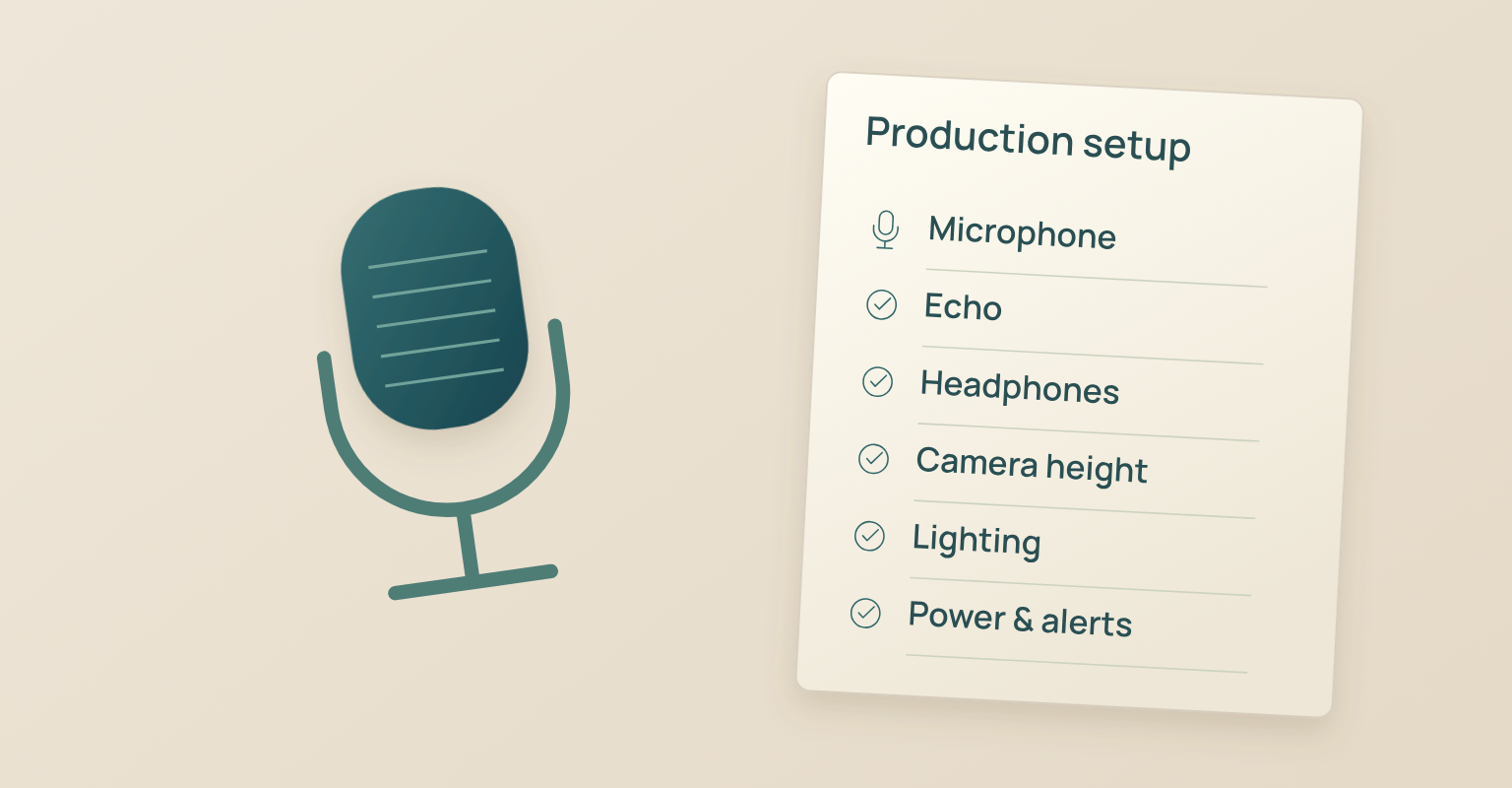
Clear audio has priority over decorative production. A viewer may tolerate an ordinary camera image, but echo, clipping, background noise or an unstable microphone quickly makes the session difficult to follow. Shure's room guidance notes that room size, materials, layout and device placement affect sound quality, so test the actual room and device position rather than assuming a microphone model performs the same way everywhere.
Audio Preparation
- Place the microphone close enough to capture the speaker clearly without forcing high input gain.
- Reduce room echo by choosing a smaller or softer room when possible and moving away from hard reflective surfaces.
- Use headphones when speakers or nearby devices could create feedback or echo.
- Silence phones, operating-system alerts, messaging applications and smart speakers.
- Keep a second approved input device available for high-value sessions.
Video and Lighting Preparation
- Position the camera near eye level and keep the speaker large enough to read facial expression.
- Use stable front lighting and avoid a bright window directly behind the speaker.
- Remove confidential or distracting information from the visible background.
- Check how glasses, clothing patterns, virtual backgrounds and screen brightness appear in the live platform.
- Connect power, disable sleep settings and close applications that may consume network or processor capacity.
For product-led sessions, prepare product demo and launch webinars with a controlled environment, known user state, hidden notifications, non-sensitive sample data and a static backup. The presenter should know which account, browser tab or window is safe to share before going live.
Plan Accessibility before the Rehearsal
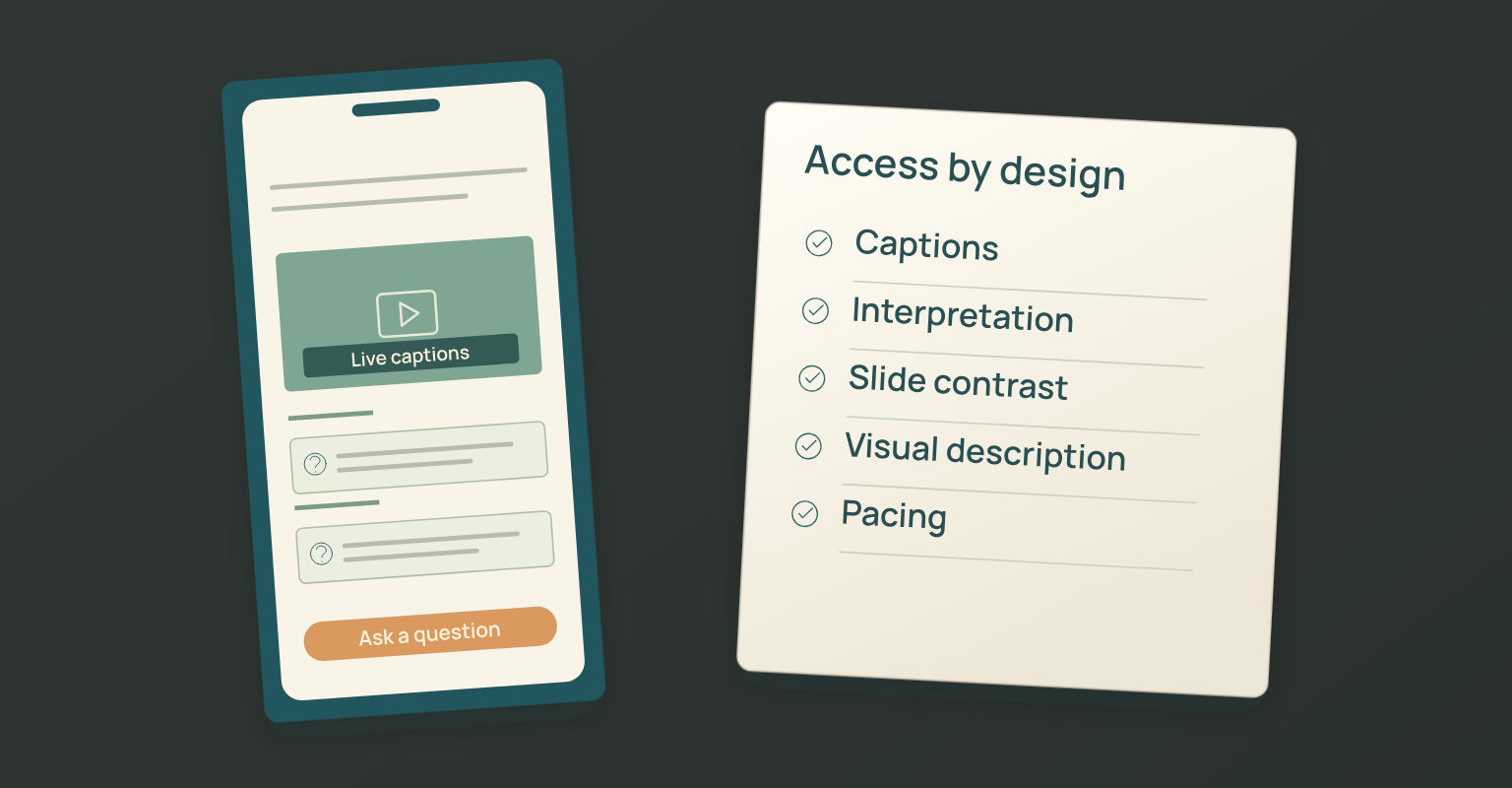
Accessibility is part of the production plan, not a final checkbox. The National Endowment for the Arts recommends live captions for interactive webinars so people who are deaf or hard of hearing can participate in real time, along with legible high-contrast slides, describing images, reading relevant on-screen text and leaving room for captions when the platform places them over the lower part of a slide.
Accessibility Decisions to Make Early
- Publish a contact route for accommodation requests early enough for the team to respond.
- Decide whether automated captions are sufficient for the audience and subject, or whether a live captioner is required.
- Confirm how an interpreter, captioner or accessibility support person will enter, remain visible and receive materials.
- Share slide decks, speaker names, technical terms and difficult proper nouns with support providers before the session.
- Use large, high-contrast text and describe meaningful charts, screenshots, images and demonstrations aloud.
- Avoid relying on colour, cursor movement or visual position alone to explain an action.
- Give the audience enough time to read slides and process questions before moving on.
Test accessibility in the live platform. A caption setting that exists in the interface is not proof that captions are accurate, visible over the selected layout, recorded correctly or usable with a shared screen.
Secure the Live Session and Prepare an Incident Response
Most webinars do not need high-security event controls, but every team should know who can enter backstage, share content, control the stream and receive sensitive links. The UK National Cyber Security Centre recommends risk assessment, supplier assurance, incident planning and testing for high-profile conferences. Scale those practices to the sensitivity of the event: the objective is to protect the backstage, the content and the attendee experience while keeping legitimate speakers and viewers able to enter, not to add access friction without a risk reason.
Use Role-Based Access
- Give producer or host permissions only to people who need them.
- Confirm external speakers through a known contact route before granting backstage access.
- Do not publish speaker or control links in public posts, shared screenshots or open documents.
- Restrict screen sharing and media control to assigned people when the platform supports it.
- Remove former speakers, contractors or test users from the live event if they no longer need access.
Prepare an Incident Plan
- Name the person who decides whether to continue, pause or end the stream.
- Keep a private team channel outside the audience experience.
- Prepare a neutral audience message for technical interruption, unauthorised content or a security concern.
- Document the support contact, platform escalation path and evidence to preserve after an incident.
- Test the end-stream and participant-removal controls before the event.
Open Backstage and Confirm Go-Live Conditions
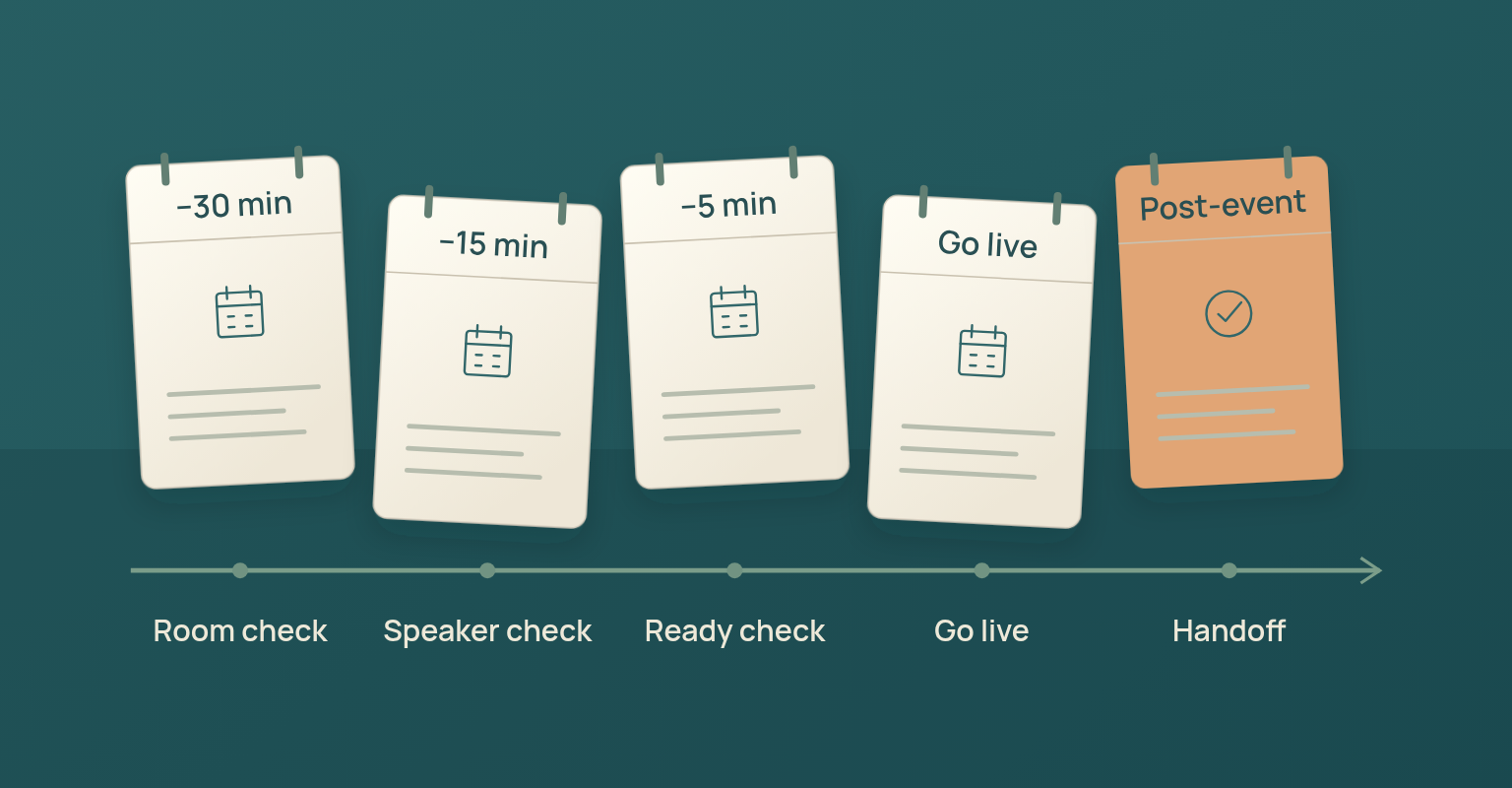
Open the production room early enough to solve problems without pressuring the speakers. For a routine B2B webinar, 30 minutes is a practical starting point. Increase the lead time when there are multiple external guests, demonstrations, interpreters, videos, complex layouts or unfamiliar equipment.
Thirty Minutes before the Webinar
- The producer opens the room and confirms the correct event.
- Speakers join with the devices and networks they will use live.
- The opening slide, presentation, demonstration, poll and backup assets are loaded.
- The private communication channel and support route are active.
- Recording, captioning and replay expectations are confirmed.
Fifteen Minutes before the Webinar
- Speaker names, camera framing, microphones and output devices are correct.
- The host reviews the opening, interaction rules, timing and close.
- The moderator has seeded questions and knows the escalation boundaries.
- The producer confirms the first layout and screen-sharing owner.
- Any missing participant has an active backup decision.
Five Minutes before the Webinar
- The team stops nonessential conversation and follows the run of show.
- Notifications and unrelated applications are closed.
- Speakers know whether they are backstage, muted or visible.
- The producer confirms who gives the final go-live approval.
- The host has the exact opening words available.
Open the Webinar with Clear Expectations
The opening should reduce uncertainty without delaying the content. Tell attendees what the session will help them do, who is speaking, how questions work, whether the session is being recorded and what to expect after the event. Keep legal, accessibility and housekeeping notices accurate and concise.
Webinar Opening Script Template
Opening Script Hello, and welcome to [Webinar Title]. Today we will help [Audience] understand how to [Outcome]. I am [Host Name], and I will guide the session. Joining me are [Speaker Names and Relevant Roles]. We will spend approximately [Duration] on the presentation and reserve [Q&A Time] for questions. Please send questions through [Chat or Q&A Method]. [Recording, captioning, replay, or access notice.] Let us begin with [First Segment]. |
Adapt the script to the event. Do not claim that a replay, transcript, slide deck or follow-up resource will be available unless the team has approved that deliverable.
Manage Transitions, Time, and Speaker Handoffs
Good hosting keeps the audience oriented while the production work stays mostly invisible. The host names the next segment, cues the next person and makes the reason for the transition clear. The producer handles layout and media changes after the verbal cue, not before it.
Use Short, Explicit Cues
- "I will hand over to [Name] for the framework."
- "Please bring up the demonstration window."
- "Let us pause for the poll."
- "We have ten minutes left, so we will move into questions."
- "I will take the room back for the closing summary."
Private cues should be equally specific: "two minutes", "wrap this example", "stop screen share" or "move to question three". Avoid "soon" or "when ready" when timing matters.
When a segment overruns, the host should know what can be shortened: repeated examples, similar questions that can be combined, an answer that can move to follow-up. Preserve the recap, the accurate next action, the replay expectation, the support route and the formal end of the stream.
Moderate Chat, Questions, and Polls
Audience interaction needs an operating model. Decide before the webinar whether questions are visible to attendees, whether chat is open, who can answer, how duplicates are grouped and which topics require follow-up. CEDR's protocol places time, transitions, discussion and Q&A facilitation with the chair or moderator, which lets presenters focus on accurate answers while the moderator protects the session flow.
Choose Chat or Moderated Q&A Deliberately
| Interaction Mode | Best Fit | Operational Need | Main Risk |
|---|---|---|---|
| Open Chat | Community-oriented sessions where visible peer conversation adds value. | Active monitoring, behavior rules, and a plan for support questions. | Distraction, repeated questions, or inappropriate messages. |
| Moderated Q&A | Product demos, expert sessions, sensitive topics, or limited speaker time. | Question triage, duplicate grouping, ownership, and follow-up capture. | The audience may feel ignored if selection is unexplained. |
| Poll | A specific decision, diagnostic question, or knowledge check. | Prepared options, launch cue, close cue, and interpretation plan. | A decorative poll that does not change the discussion. |
Prepare two or three questions that can start the discussion if the live queue is empty. The moderator can introduce them honestly as common questions, questions submitted before the session or prompts from the planning team, never as a named attendee asking live.
Assign an owner to every useful unanswered question. Mark whether the answer can be sent directly, included in a broader follow-up, addressed in product documentation or declined because it requires confidential or unverified information. Avoid live promises the team cannot keep afterwards.
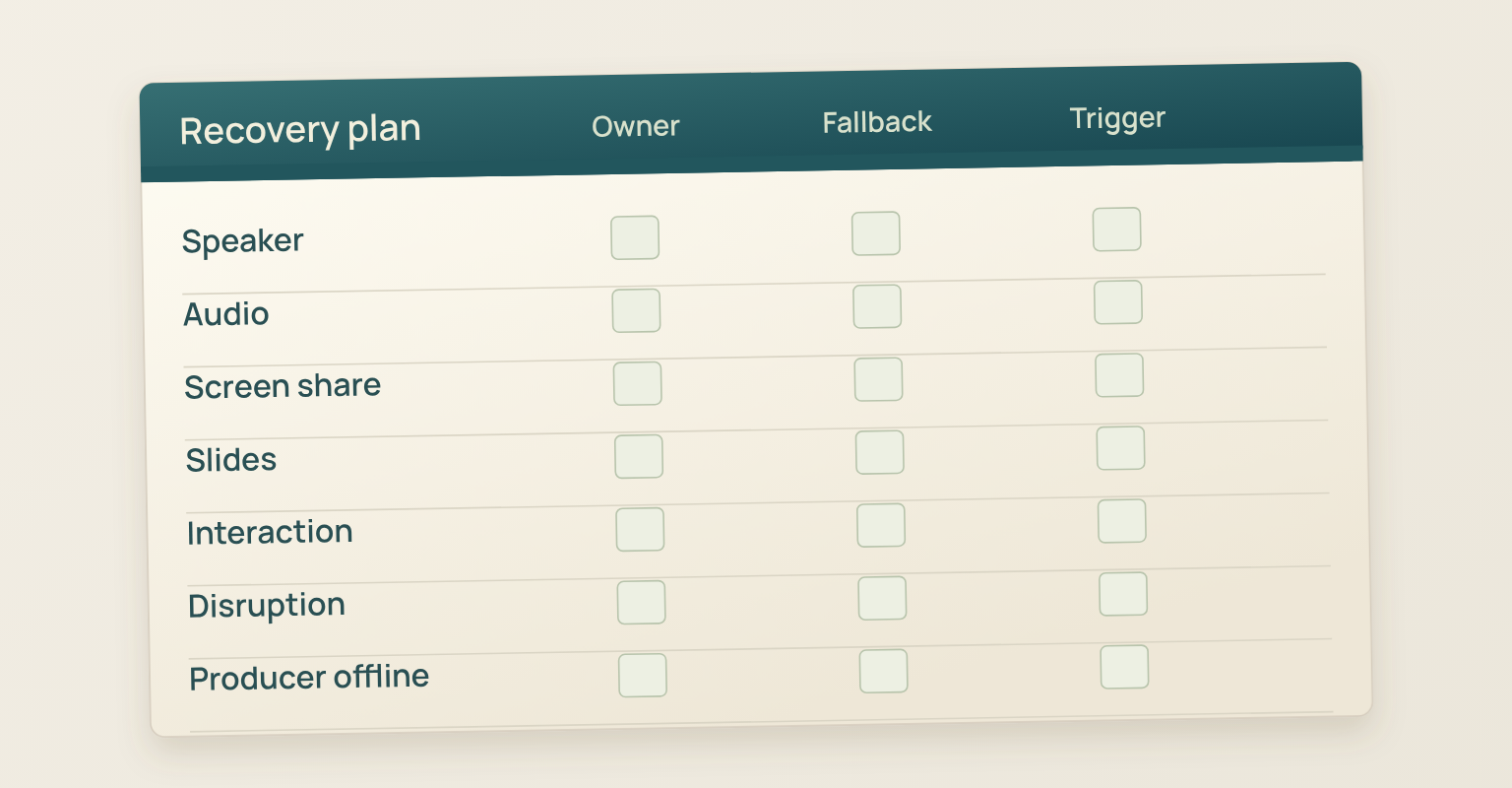
Use a Practiced Failure-Response Plan
A contingency plan protects the audience experience first. The producer investigates the issue, the host keeps the session moving and the moderator adjusts timing or interaction. Silence and visible panic make a small technical problem feel larger than it is.
| Issue | Immediate Action | Audience Message | Backup Owner |
|---|---|---|---|
| Speaker Disconnects | Producer contacts the speaker privately. Host moves to another segment, seeded question, or summary. | “We are moving to the next question while [Name] reconnects.” | Host or second presenter. |
| Microphone Fails or Echo Starts | Mute the affected source, switch input or headphones, and reintroduce the speaker after confirmation. | “We are correcting an audio issue and will continue with [Segment].” | Producer. |
| Screen Share Fails | Stop the share, return to the stage, and use a static slide, screenshot, or verbal explanation. | “We will use the prepared example while the demonstration resets.” | Producer and presenter. |
| Slides or Video Freeze | Move to the backup file or skip the asset without forcing repeated restarts. | “We will continue with the key point and share the resource after the session.” | Producer. |
| Q&A or Poll Is Unavailable | Collect questions through the remaining channel or use prepared prompts. | “Please use [available route] for questions.” | Moderator. |
| Disruptive Content Appears | Remove or hide the content, preserve evidence if needed, and continue or pause based on risk. | Use a neutral interruption notice only if the audience saw the issue. | Producer and incident owner. |
| Primary Producer Disconnects | Backup producer assumes control and confirms the current run-of-show position. | No audience message unless the issue affects the session. | Named backup producer. |
Tell attendees what affects them and what the team is doing next. Keep investigation, blame and platform diagnosis inside the private production channel.
Close the Webinar Deliberately
The close tells the audience what they learned, what they can access next and which action is relevant, and it gives the producer a clear cue to end the stream. Do not let the event drift into private speaker conversation while attendees are still connected.
Webinar Closing Script Template
Closing Script We have covered [Key Point One], [Key Point Two], and [Key Point Three]. The next useful step is [CTA or Resource]. [Accurate replay or follow-up expectation.] Thank you to [Speakers] and to everyone who joined us. We are ending the stream now, and you can contact [Support or Follow-Up Route] with any remaining questions. |
- The host summarises the real session rather than repeating the original agenda.
- The CTA is relevant to the webinar outcome and audience state.
- Replay and resource language matches the approved plan.
- The support or follow-up route is clear.
- The producer receives an explicit end-stream cue and confirms the session is closed.
Complete the Post-Webinar Handoff
The live session ends before the campaign ends. Confirm that the stream ended and attendees no longer have access to the live room. Verify that the recording exists, plays correctly and follows the approved access plan. Save the final slide deck, run of show, poll results, question queue and incident notes, identify questions that need personal, product, legal or technical review, and separate attendees from no-shows before follow-up is prepared. Record what changed from the plan while the details are still fresh.
Use the webinar email templates for confirmations and reminders before the event, then schedule confirmation, reminder and follow-up messages according to actual attendance and asset readiness. Afterwards, review webinar performance and engagement data before interpreting what the audience behaviour may mean.
Common Webinar Hosting Mistakes
- Treating the host as the entire production team. Nobody can guide the audience, watch every question, change layouts, troubleshoot a speaker and protect timing equally well at the same moment. Combine roles only when the session allows it, and define the priority order.
- Rehearsing the slides but not the handoffs. Content can be correct while the live workflow still fails. Test speaker entry, stage movement, media changes, Q&A, closing and end-stream control.
- Using a run of show that is only an agenda. An agenda tells the audience what topics are coming. A run of show tells the team who acts, when, with which cue, asset and backup.
- Letting the demo depend on one fragile environment. A product demonstration needs stable sample data, a known starting state, hidden notifications and a static or recorded backup.
- Adding accessibility after the final rehearsal. Caption placement, interpreter visibility, slide readability and visual description affect the layout and speaking pace, so they must be tested before the live date.
- Opening Q&A without moderation rules. Unassigned questions, duplicates, sensitive topics and speaker overrun can consume the close.
- Explaining technical problems in detail. The audience needs a clear next action, not an internal diagnosis.
- Ending without a confirmed stream close. The host gives a clear closing cue, and the producer verifies that the audience is no longer connected before private discussion begins.
How JakoMeet Supports Live Webinar Hosting
JakoMeet's native Control Room supports camera and microphone checks, rehearsal, speaker staging, stage layouts, screen or presentation sharing and explicit Go Live and End controls. Guest speakers join backstage through a dedicated link without creating an account. Organisers can run chat and moderated Q&A together, prepare live polls and turn on live captions, which viewers can follow in 10 languages.
You can run the live webinar in JakoMeet's Control Room, move prepared speakers from backstage to the live stage, operate presentation or screen sharing, moderate chat and Q&A, and keep the live session connected to the same event used for registration and follow-up. For the wider lifecycle, see the full webinar workflow in JakoMeet, or compare JakoMeet plans and live event limits.
Frequently asked questions
How Do You Host a Webinar from Start to Finish?
Define the audience outcome, assign live roles, build a run of show, rehearse the complete workflow, test the room and access path, open with clear expectations, manage time and interaction, close with a specific next step, then verify the recording, questions, attendance data, and follow-up ownership.
How Many People Are Needed to Run a Webinar?
A small webinar can run with one person, but separating hosting from production reduces risk. A practical team includes a host or moderator, a producer who controls the platform, and one or more presenters. Larger or higher-risk sessions may also need a Q&A moderator, accessibility owner, support contact, and technical backup.
What Is the Difference between a Webinar Host, Moderator, and Producer?
The host represents the event and guides the audience experience. The moderator manages discussion, questions, and time. The producer controls the live platform, speaker staging, screen sharing, recording, and technical recovery. One person may cover more than one role, but the responsibilities should still be explicit.
What Should a Webinar Run of Show Include?
Include the exact timeline, segment purpose, speaker or owner, cues, presentation asset, audience interaction, backup action, and private communication route. Add contact details and clearly mark the moments when the room opens, recording starts, the stream goes live, Q&A begins, the CTA appears, and the event ends.
How Early Should Hosts and Speakers Join a Webinar?
For a routine session, joining 30 minutes before the stream is a practical starting point. Use more time for external guests, multiple speakers, demos, interpreters, complex screen sharing, or unfamiliar equipment. The team should be fully staged before attendees expect access.
How Long Should a Webinar Rehearsal Be?
Rehearsal length depends on complexity. A simple single-speaker briefing may need 20 to 30 minutes. A multi-speaker session, product demonstration, panel, or interpreted event may need a full run-through. The rehearsal is complete only when transitions, access, media, interaction, and recovery plans have been tested.
Should Webinar Questions Use Chat or Moderated Q&A?
Choose the interaction mode before the event. Chat supports visible conversation but requires active monitoring and clear behavior rules. Moderated Q&A gives the team more control over duplicates, sensitive questions, sequencing, and speaker workload. Use the format that matches the audience, risk level, and staffing model.
What Should You Do If a Webinar Speaker Loses Connection?
The host should continue with a prepared bridge while the producer contacts the speaker privately and activates the backup plan. That plan may involve moving to another speaker, showing a prepared slide, answering a queued question, or pausing the demo. Avoid leaving the audience in silence while the team troubleshoots.
Sources and Further Reading
- University of Minnesota IT: Pre-Webinar Checklist for Hosts: Preparation phases, practice sessions, live-day checks, audience controls, and after-webinar tasks (opens in a new tab)
- Barnard College AV: Run of Show Templates: Run-of-show structure, detailed timing, participant information, contacts, and operational coordination (opens in a new tab)
- Shure: A Guide to Microphone and Speaker Placement in Your Conference Room: How room properties and device placement affect spoken-audio quality (opens in a new tab)
- National Endowment for the Arts: Ensure Accessibility of Your Virtual Events: Live captions, readable slides, visual description, caption placement, and inclusive event preparation (opens in a new tab)
- UK National Cyber Security Centre: Cyber Security for High Profile Conferences: Risk assessment, supplier assurance, incident planning, testing, and escalation for higher-risk events (opens in a new tab)
- CEDR: Webinar Protocol: Role ownership, opening and recording notices, time management, transitions, moderation, Q&A, and follow-up (opens in a new tab)