
LIVE EXPERIENCE
Webinar Presentation Template: Slides, Structure, and Examples
A webinar presentation template is an editable slide deck that gives a session a clear sequence: introduce the audience’s problem, explain an idea, show how it works, and help attendees apply it. The template below uses 12 slides to…
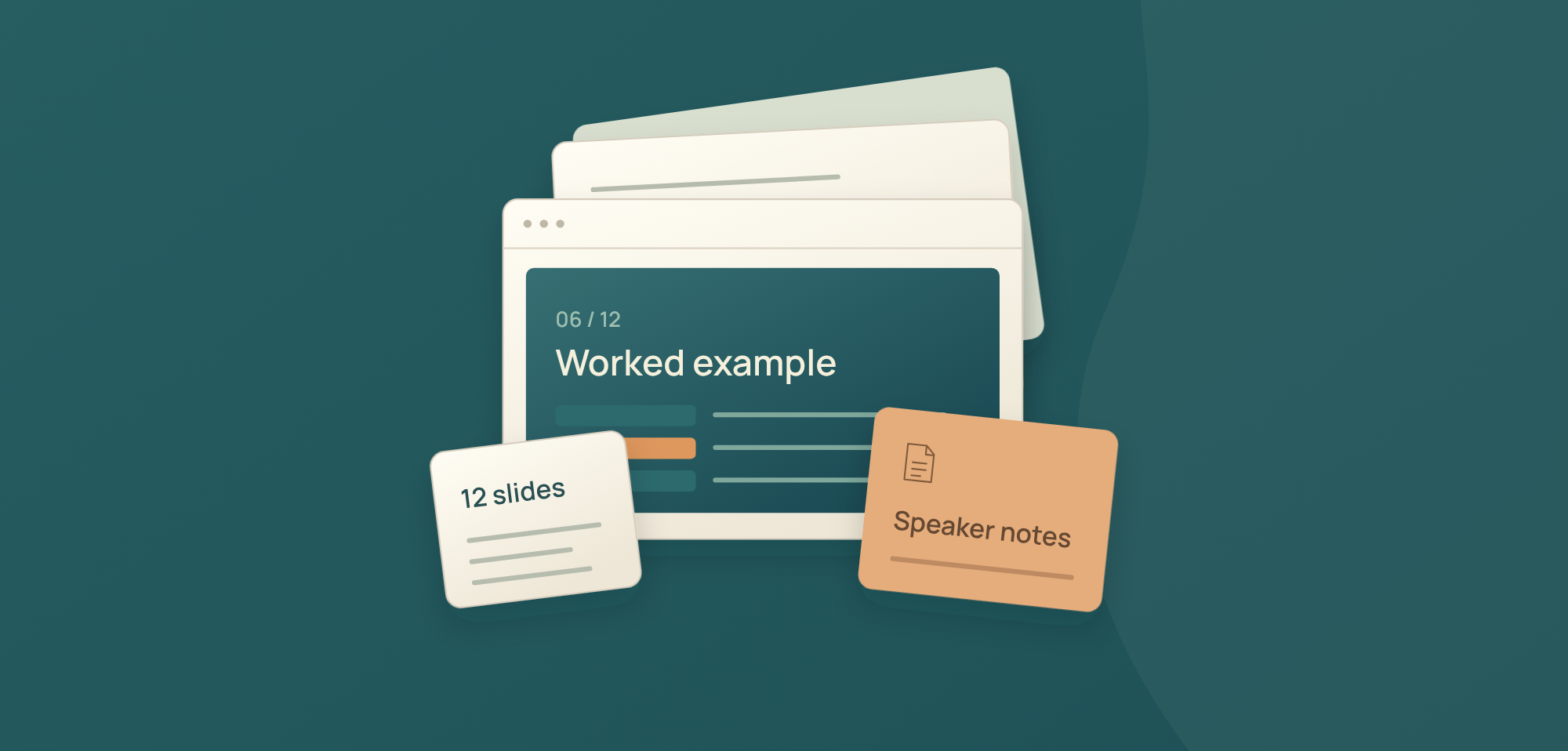
A webinar presentation template is an editable slide deck that gives a session a clear sequence: introduce the audience’s problem, explain an idea, show how it works, and help attendees apply it. The template below uses 12 slides to organize that sequence for a focused B2B webinar.
Use it for a customer education session, an expert briefing, or a practical workshop. Replace the prompts with your own explanation and evidence, then adjust the structure to fit the audience’s task. Twelve slides are a starting point, not a rule for how long a webinar should last.
Download the Webinar Presentation Template
The accompanying PowerPoint file includes editable text, a worked-example table, and speaker notes explaining the purpose of every slide. Its simple layouts leave room for your own wording and visuals. You can duplicate a slide when an example needs more explanation or remove a slide that does not serve the session.
Download the Webinar Presentation Template (PPTX): JakoMeet_Webinar_Presentation_Template.pptx
Keep an untouched copy before editing. Replace every bracketed prompt, including the presenter details, resource destinations, and audience question. Remove unused answer options and check the speaker notes before sharing the file with your team. The question slide is a visual prompt; an interactive poll must be set up in your webinar platform.
A 12-Slide Webinar Presentation Structure
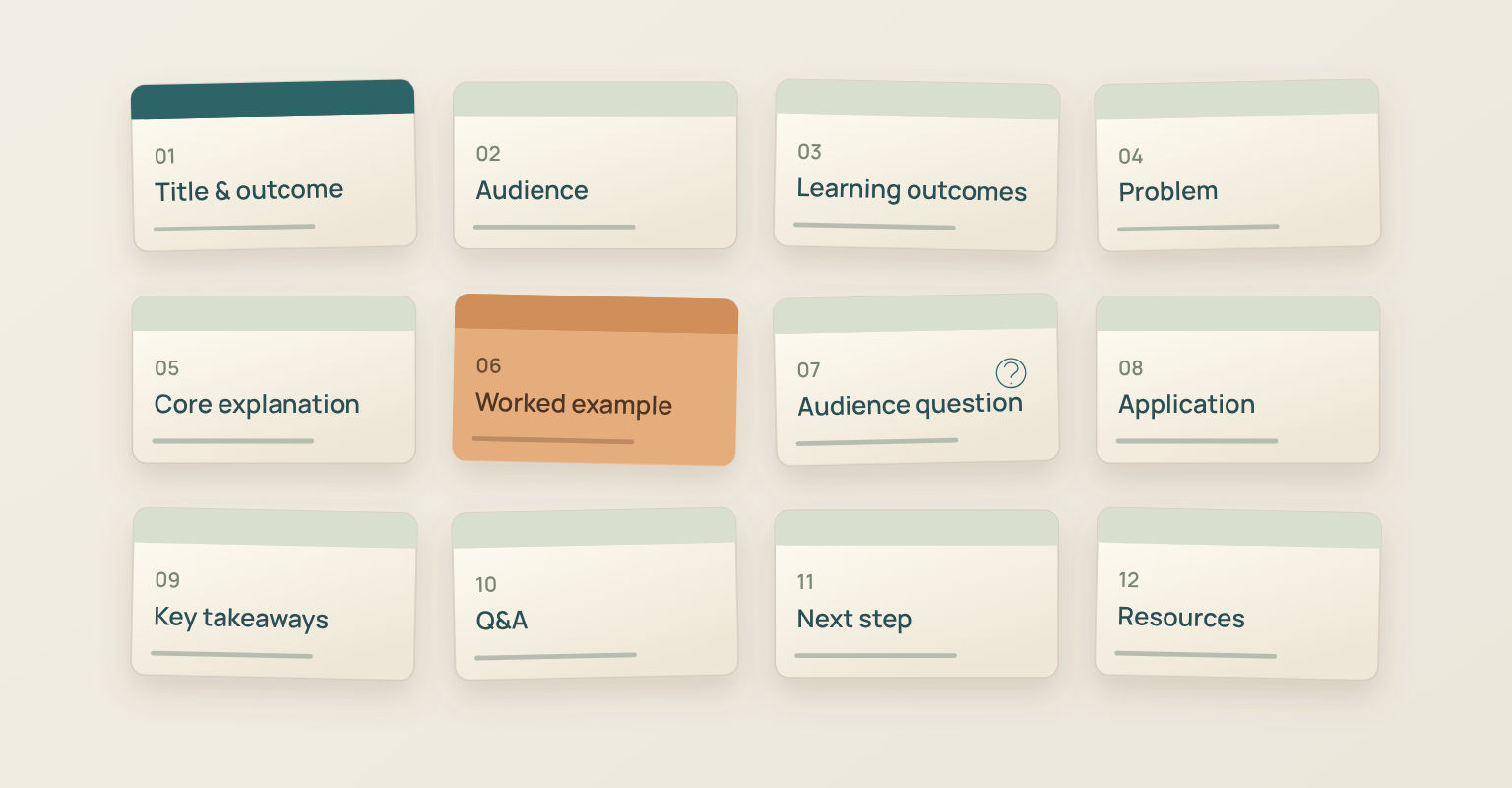
Each slide should do a specific job. Use this structure to decide what belongs on screen and what you will explain aloud.
| Slide | Purpose | What to Put on It |
|---|---|---|
| 1 | Title and Outcome | Name the session, presenter, and practical outcome. |
| 2 | Audience and Context | State who the session is for and the starting knowledge it assumes. |
| 3 | Learning Outcomes | Show the decisions or tasks the audience will be able to complete. |
| 4 | Problem | Describe the current situation and its practical consequence. |
| 5 | Core Explanation | Explain the main idea and an important condition or limit. |
| 6 | Worked Example | Connect a decision to evidence, an action, and a boundary. |
| 7 | Audience Question | Ask one relevant question; remove the slide if it adds no value. |
| 8 | Application | Show how to apply the idea through a short sequence of actions. |
| 9 | Key Takeaways | Return to the learning outcomes and reinforce the main point. |
| 10 | Q&A | Invite questions about the session topic. |
| 11 | Next Step | Offer one action that follows naturally from the learning outcome. |
| 12 | Resources and Sources | Provide descriptive resource labels and verified destinations. |
The sequence can change when the explanation requires it. You might place a short audience question before the core idea to surface a misconception, or use several example slides for a complex task. Keep the relationship between the question, explanation, and application clear.
How to Adapt the Template to Your Webinar
Start with a Specific Audience Task
Write down what the attendee should be able to do after the session. “Understand webinar strategy” leaves too much room for unrelated material. “Choose one customer question to answer in an educational webinar” gives the presentation a concrete task and a clear boundary.
Use that task on the title or learning-outcomes slide. On the audience slide, name the role and situation that make the session relevant. For example, the session might be for product marketers preparing their first customer education webinar, with customer questions already collected.
If you have not yet decided the audience, topic, or campaign goal, work through the webinar planning checklist first. Once that brief is clear, the presentation can concentrate on the explanation attendees need.
Build an Explanation and a Worked Example
A useful presentation shows the audience how to make the decision you promised to help with. State the core idea, explain the reasoning, and demonstrate it in an example. Avoid replacing the example with a list of general tips.
For an illustrative session about choosing a customer webinar question, the core idea could be: “Choose a question that a defined audience can act on after one session.” Explain what makes a question specific enough, then show a broad question being narrowed.
Here is an illustrative example you could place in the editable table on slide 6:
| Example Element | Illustrative Case |
|---|---|
| Decision | Which customer question should this webinar answer? |
| Evidence and Action | Assume the submitted questions ask how to prepare a first customer education deck. Narrow the session from “webinar best practices” to choosing and structuring one worked example. |
| Limit or Exception | A question about campaign promotion needs a different session; it does not belong in a presentation design walkthrough. |
This is a teaching example, not a customer result or a benchmark. For your own webinar, replace the assumed situation with evidence you can show or accurately describe. Include its source and explain any condition that limits the conclusion.
Turn the Explanation into Readable Slides
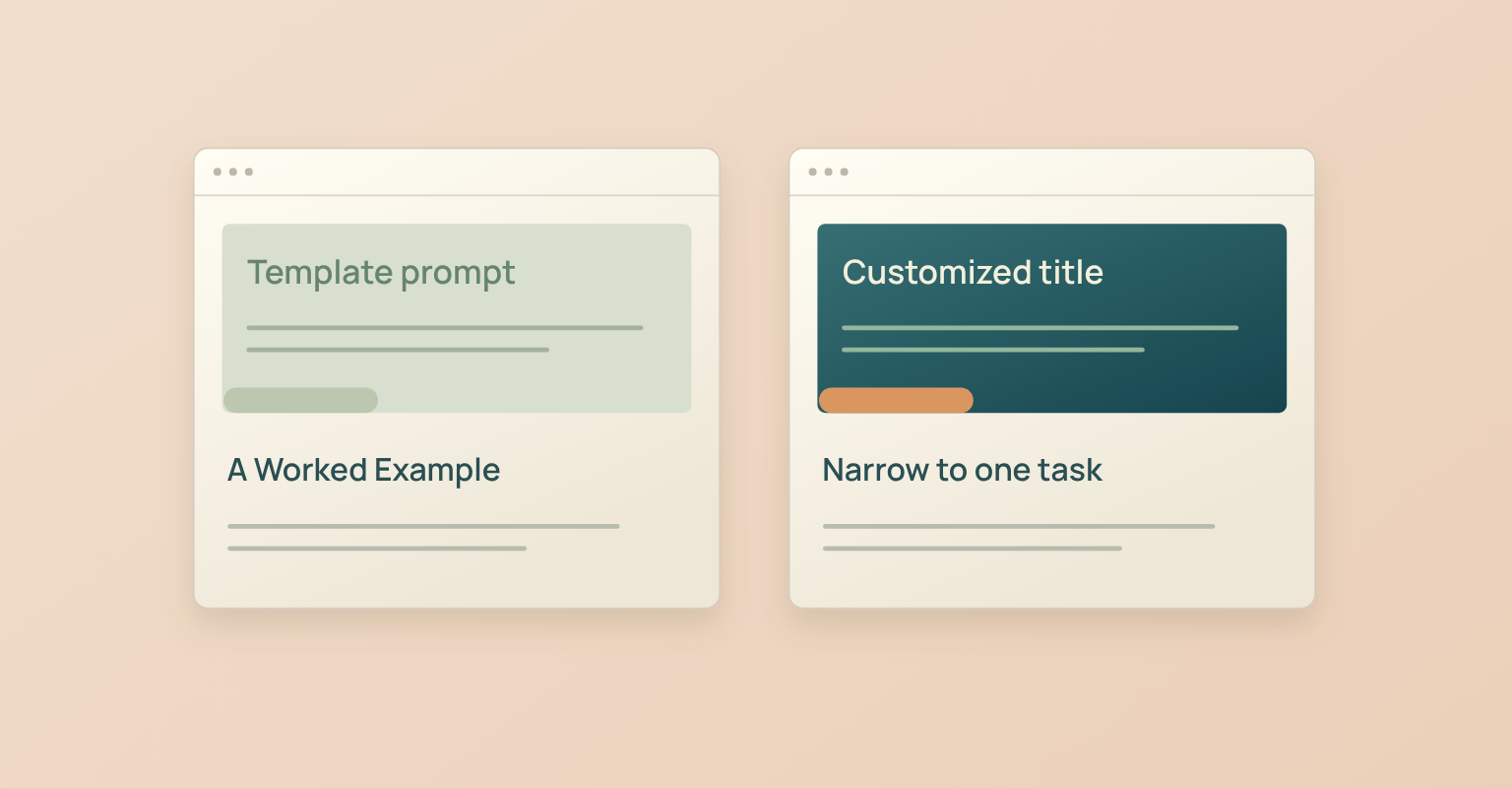
Use the slide title to tell attendees what they are looking at. “A Worked Example” is a useful template prompt; “Narrow a Broad Question to One Audience Task” is a more informative title after you customize the deck.
Keep the main explanation visible and move supporting context into your notes. If a screenshot or diagram explains the point better, give it enough space and remove text that merely repeats it. A dense source table can become a separate resource while the slide shows the comparison you are actually discussing.
When you reach the application slide, give attendees a task they can try. In the illustrative example, that could be writing their audience’s question, choosing a case that answers it, and identifying a limit the presenter needs to explain. The takeaway slide should return to those same ideas.
Slide Design That Works in a Live Webinar
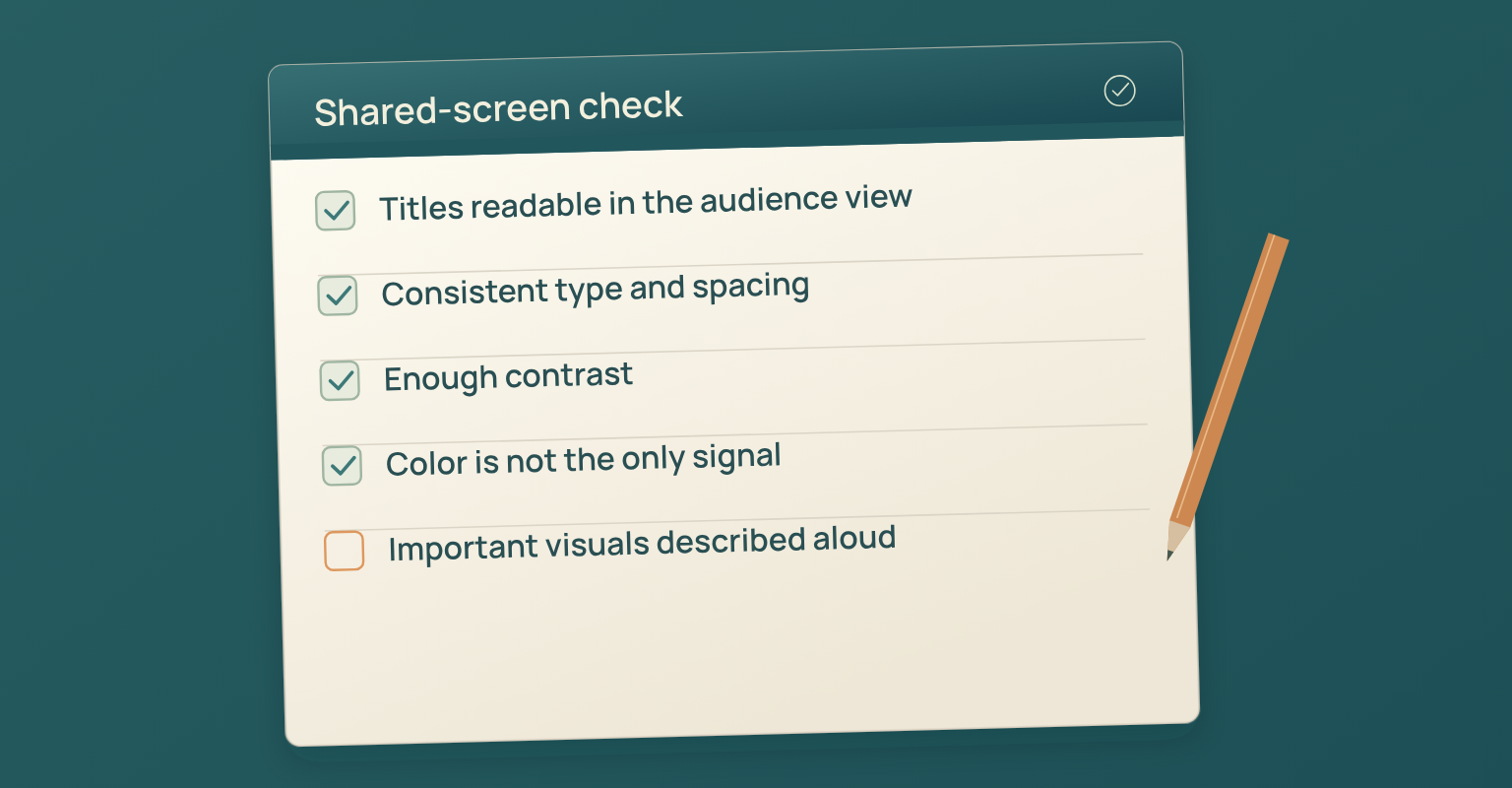
Design for the audience’s shared-screen view. Text that looks comfortable in the editing window may be hard to read when the presentation is displayed alongside the speaker or viewed on a smaller screen. Review the actual audience view rather than choosing a font size once and assuming it will work everywhere.
Use consistent type styles and spacing so attendees can recognize the title, explanation, and source. Keep enough contrast between the text and background. Do not make color the only way to distinguish options or explain a result.
Microsoft’s PowerPoint accessibility guidance recommends checking slide titles, reading order, image descriptions, and descriptive links. Run the Accessibility Checker on the finished deck and review its findings, including any issues introduced by visuals you add.
W3C’s accessible presentation guidance also supports clear organization and limiting the amount of text people must read while listening. Describe the important information in a visual aloud. Put detailed reference material in a separate handout or resource when attendees need it.
For a chart, show the labels and units needed to interpret the point. For a screenshot, crop to the relevant part and remove confidential information. Use evidence that helps explain the audience’s decision rather than adding a visual just to fill an empty slide.
Prepare the Deck for Live Delivery
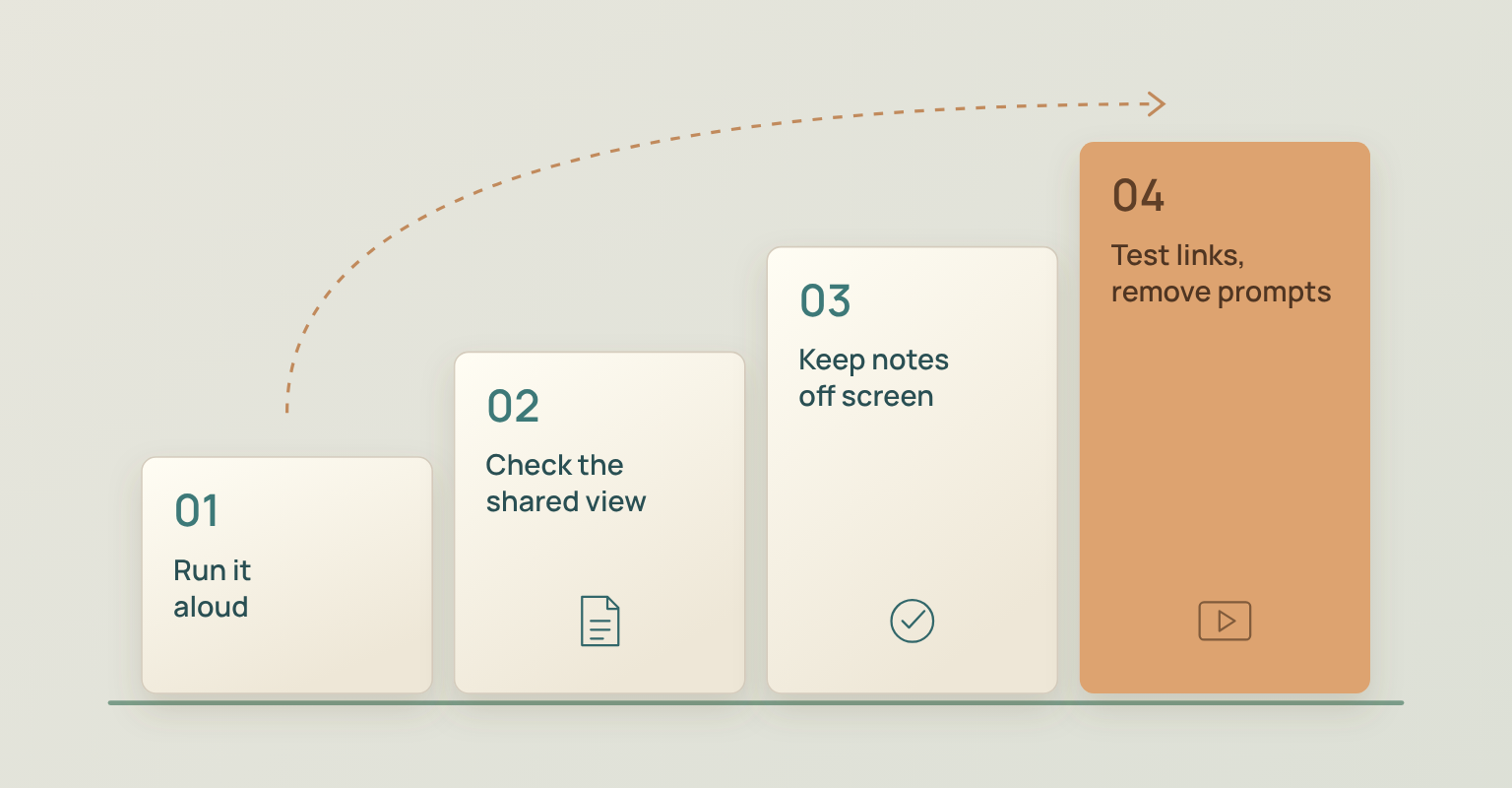
Run through the presentation aloud with the customized deck. This reveals transitions that are unclear, examples that need another slide, and text you are trying to read instead of explain. Adjust the content before polishing minor visual details.
Check these four things in the sharing setup you will actually use:
- The audience can read the titles, labels, and important evidence.
- Fonts, line breaks, and the example table display as expected.
- Only the intended presentation surface is shared; private notes stay off screen.
- Resource links work, and unused prompts have been removed.
Keep the production run of show, speaker responsibilities, and technical fallback in your guide to hosting a webinar. The slide deck provides the audience’s visual sequence; the hosting guide covers the operational work around it.
Presenting the Deck in JakoMeet
JakoMeet supports screen sharing and sharing an uploaded presentation, with presentation layouts available during the live session. Check the screen and presentation sharing options in JakoMeet and test your chosen sharing method before the event. Confirm the accepted file format in your actual event setup.
If you use the template’s audience question, configure the interaction separately. JakoMeet runs one poll per webinar on Launch and two on Growth, each with one question and two to six answer options, alongside attendee chat and moderated Q&A. Adapt the slide to the interaction you have selected.
After you have a clear deck and a delivery plan, see how JakoMeet connects webinar preparation and live delivery.
Frequently asked questions
How Many Slides Should a Webinar Presentation Have?
There is no fixed slide count for every webinar. Use the 12-slide template as a starting structure, then add or remove slides according to the explanation, examples, audience questions, and available session time. Keep each slide readable and useful.
How Long Should a Slide Stay on Screen?
Keep a slide visible long enough for attendees to understand the point and inspect any evidence you discuss. A simple statement may need less time than a worked example. Check the pace in a spoken run-through instead of assigning every slide the same timer.
Should I Read Webinar Slides Word for Word?
Use the slides to support your explanation. Speak to the main point, explain the evidence, and add the context that belongs in your presenter notes. If attendees need a detailed reference, provide a separate resource rather than putting the full script on screen.
Can I Edit the Webinar Presentation Template in Google Slides?
Yes. Upload the PowerPoint file to Google Drive and open it with Google Slides. Google supports editing Office presentation files through this workflow. Review fonts, line breaks, table layout, and speaker notes before presenting. See Google’s PowerPoint-to-Slides guidance.
Can I Use This Template for a Product Demo Webinar?
You can adapt the opening, explanation, takeaway, and resource slides. An interface walkthrough also needs a demo sequence and a plan for showing the product. Use the live product demo script template for that part of the session.
Should Webinar Slides Include a Call to Action?
Include one relevant next step when it helps the audience use what they learned. That could be completing a worksheet, trying a process, or reading a related guide. Explain what the action helps them do and give them a clear destination.
Sources and Further Reading
- Microsoft: Make Your PowerPoint Presentations Accessible: slide titles, reading order, image descriptions, contrast, and accessibility checks (opens in a new tab)
- W3C WAI: Making Events Accessible: accessible presentation structure, text, visuals, and supporting materials (opens in a new tab)
- Google: Switch from PowerPoint to Slides: opening and editing PowerPoint files in Google Drive and Slides (opens in a new tab)